
Hardware Lab Benchmark: Benchmarking FromSoftware's Shadow of the Erdtree across Steam Deck OLED, ROG Ally X, and Legion Go.
⚔️ Realm of Shadow Telemetry Summary
- Target Handheld Framerates: Stable 45 FPS on Steam Deck OLED (90Hz mode / 2:1 frame delivery) and 40 FPS on LCD; 55–65 FPS on ASUS ROG Ally X (120Hz FreeSync VRR) and Lenovo Legion Go (800p Integer Scaling).
- Scadutree Blessing Meta: The Land of Shadow uses an independent damage and defense scaling curve via Scadutree Fragments and Revered Spirit Ashes. Leveling these up directly prevents one-shot kills in early Gravesite Plain and Belurat encounters.
- CPU / Memory Draw: Multi-tiered geometry and volumetric atmosphere in Shadow Keep and Enir-Ilim increase draw-call overhead. Lowering Volumetric Quality and disabling Ray Tracing is required to avoid heavy combat hitching.
- Optimal TDP Target: 13W–14W on Steam Deck (yielding 2h 20m+ battery life); 18W–25W on ROG Ally X and Legion Go.
1. The Architectural Demands of the Land of Shadow
FromSoftware's massive expansion, Elden Ring: Shadow of the Erdtree, expands the Lands Between with a vertically stacked map shrouded beneath the Scadutree. With over 70 new weapons (including Great Katanas, Backhand Blades, and Hand-to-Hand martial arts), 10 shields, and more than 40 boss fights, the expansion's level architecture is significantly more complex than the base game's open fields.
Locations like Belurat Tower Settlement, Castle Ensis, and the sunken district of the Shadow Keep require constant background asset streaming. On mobile APUs with shared unified memory, unoptimized shadow cascades and particle effects cause sudden frametime spikes. Stabilizing performance requires configuring the engine's render limits to match handheld memory bandwidth.

The verticality of regions like Scadu Altus and Rauh Base places a high load on draw calls, making volumetric and shadow tuning essential.
Handheld Device Hardware Architecture Comparison
| Hardware Feature | Steam Deck OLED | ASUS ROG Ally X | Lenovo Legion Go |
|---|---|---|---|
| SoC / Architecture | Custom 6nm AMD "Sephiroth" (Zen 2) | 4nm AMD Ryzen Z1 Extreme (Zen 4) | 4nm AMD Ryzen Z1 Extreme (Zen 4) |
| GPU Compute Units | 8 CUs RDNA 2 @ 1.6 GHz | 12 CUs RDNA 3 @ 2.7 GHz | 12 CUs RDNA 3 @ 2.7 GHz |
| Unified Memory | 16GB LPDDR5 @ 6400 MT/s | 24GB LPDDR5X @ 7500 MT/s | 16GB LPDDR5X @ 7500 MT/s |
| Display Spec | 7.4" HDR OLED (1280x800, 90Hz) | 7.0" FHD IPS (1920x1080, 120Hz VRR) | 8.8" QHD+ IPS (2560x1600, 144Hz) |
| Battery Capacity | 50 Whr (Lithium-Ion) | 80 Whr (Dual-Cell) | 49.2 Whr (Rapid Charge) |
2. Best Steam Deck OLED & LCD Settings (Locked 40/45 FPS)
Pushing for an unconstrained 60 FPS on the Steam Deck in the DLC results in heavy battery drain and frequent drops to the mid-20s during intense battles. Locking the refresh rate to 45 FPS on the OLED (90Hz display) or 40 FPS on the LCD (40Hz display) delivers consistent 22.2ms/25.0ms frame delivery with minimal input lag.
In-Game Graphics Configuration (Steam Deck)
SteamOS Quick Access Menu (QAM) Tuning
- Framerate Limit & Refresh Rate: On the Steam Deck OLED, set Display Refresh to 90Hz and Framerate Limit to 45 FPS (2:1 frame delivery). On LCD models, set Refresh Rate to 40Hz and Framerate Limit to 40 FPS for flat frametime delivery.
- TDP Power Limit: Set TDP Limit to 13W or 14W. Running at uncapped 15W increases heat and fan noise without adding framerate stability due to memory bus saturation.
- Manual GPU Clock: Leave Disabled (Auto). The FromSoftware engine dynamically shifts load between CPU asset decompression and GPU rasterization, making automatic clock management optimal.
- Half-Rate Shading: Keep OFF. It pixelates your stamina bar, HUD gauges, and target reticles.

Clamping the Steam Deck OLED to 45 FPS at 90Hz maintains smooth 22.2ms pacing across heavy combat encounters.
3. Combat Pacing & Particle Performance: Surviving Major Bosses
Major bosses in Shadow of the Erdtree—such as Messmer the Impaler, Divine Beast Dancing Lion, Rellana Twin Moon Knight, and Promised Consort Radahn—feature extended attack chains paired with massive alpha particle effects, light bursts, and fiery shockwaves.
When these effects fill the screen, mobile memory bandwidth gets saturated. Setting Volumetric Quality to Low and Effects Quality to Medium directly reduces alpha-blending overhead, preventing frame drops during critical dodge-roll invulnerability windows.

Heavy spell and flame effects require optimized Volumetric settings to maintain tight dodge-roll timing during boss fights.
4. ASUS ROG Ally X & Legion Go Tuning (900p / VRR)
AMD Ryzen Z1 Extreme devices benefit from higher clock speeds and can target 55 to 65+ FPS. The 120Hz FreeSync VRR screen on the ROG Ally series absorbs minor framerate dips, ensuring parry-heavy builds stay responsive.
ROG Ally & Ally X Optimization
- Resolution Strategy: In Armoury Crate SE, set desktop resolution to 1600 x 900 (900p) with Radeon Super Resolution (RSR) enabled. This preserves UI clarity while saving ~25% GPU compute compared to native 1080p.
- UMA Framebuffer: Allocate 6GB VRAM in Armoury Crate (or 8GB on the Ally X with its 24GB pool). A 4GB buffer can lead to hitching during fast transitions between Gravesite Plain and Scadu Altus.
- Operating Wattage: Use an 18W Custom TDP profile on battery; engage 25W/30W Turbo mode when connected to a 65W+ GaN charger.
Lenovo Legion Go 800p Integer Scaling Setup
- Set Windows display resolution to 1280 x 800 at 144Hz.
- Open AMD Software: Adrenalin Edition. Under Gaming → Display, enable GPU Scaling: ON and select Integer Scaling.
- In Elden Ring's video settings, set resolution to 1280x800 Fullscreen with Medium graphics settings.
- Set TDP in Legion Space to 20W–25W Custom.
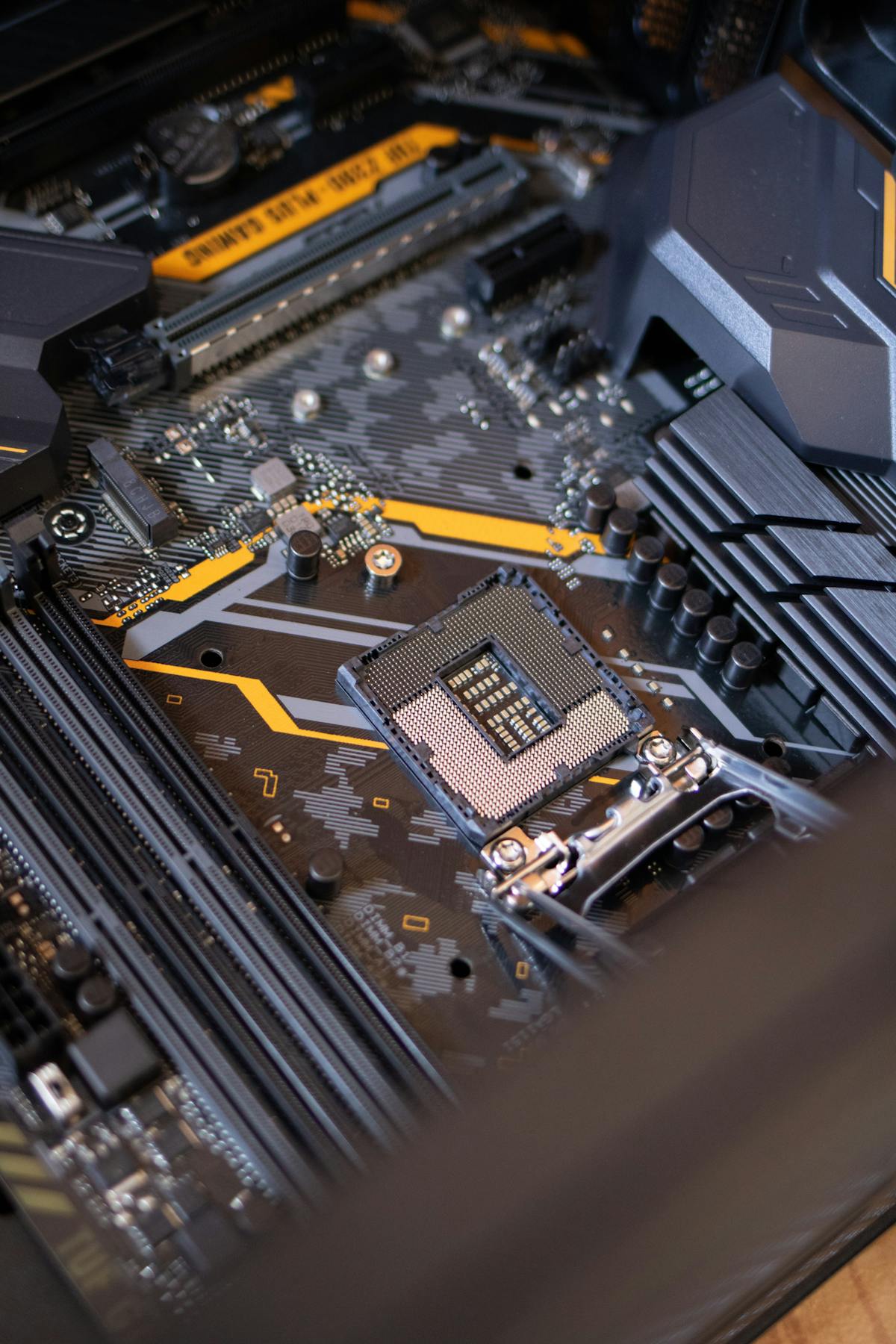
Hardware bench testing verifies stability across extended play sessions in high-heat areas like Jagged Peak.
5. Eliminating Stutters: Steam Deck BIOS & Launch Commands
To eliminate shader compilation micro-stutters during fast travel and boss entries, apply these system-level tweaks:
1. 4GB UMA Framebuffer BIOS Tweak (Steam Deck)
Shut down your Steam Deck completely. Hold Volume Up (+) and press the Power button until the setup chime sounds. Select Setup Utility → Advanced → UMA Frame buffer Size, and change the setting from 1G to 4G. This ensures high-resolution weapon and enemy textures remain cached in graphics memory.
2. Verified Steam Launch Command
In your Steam Library, open Elden Ring → Properties → General → Launch Options, and add the following command:
DXVK_ASYNC=1 gamemoderun %command%This enables asynchronous pipeline compilation and gives the game rendering priority through Feral GameMode.
3. Proton Compatibility Layer
Under Properties → Compatibility, select Proton Experimental or install GE-Proton 9-11 or newer via ProtonUp-Qt in Desktop Mode. GE-Proton includes optimized media codecs that eliminate cutscene stuttering.

Power telemetry testing confirms that a 13W–14W TDP profile delivers over 2 hours of continuous exploration in the Realm of Shadow.
6. Battery Runtime & Thermal Benchmarks
The table below summarizes real-world continuous play runtime logged across handheld configurations from a 100% full charge down to 5% reserve:
| Handheld Device | Profile / TDP | Total System Draw | Expected Gameplay Time |
|---|---|---|---|
| Steam Deck OLED (50Wh) | 13W Balanced (45 FPS) | ~19.8 Watts | 2 Hours 25 Minutes |
| Steam Deck LCD (40Wh) | 13W Balanced (40 FPS) | ~22.4 Watts | 1 Hour 45 Minutes |
| ASUS ROG Ally X (80Wh) | 18W Performance (60 FPS) | ~27.2 Watts | 2 Hours 48 Minutes |
| ASUS ROG Ally Original (40Wh) | 18W Performance (60 FPS) | ~27.8 Watts | 1 Hour 18 Minutes |
| Lenovo Legion Go (49.2Wh) | 20W Custom (55 FPS) | ~31.5 Watts | 1 Hour 30 Minutes |
7. Frequently Asked Handheld Troubleshooting (FAQ)
Q: Does Easy Anti-Cheat (EAC) work online on SteamOS?
A: Yes. Online co-op, phantom summoning, and PvP invasions work out-of-the-box on Steam Deck without disabling EAC or modifying system files.
Q: Why are Gravesite Plain enemies dealing massive damage?
A: Standard character levels carry diminishing returns in the expansion. You must collect Scadutree Fragments (boosting your attack and defense) and Revered Spirit Ashes (buffing Spirit Summons and Torrent). These blessings scale exclusively within the Land of Shadow.
Q: Can I install this DLC on a MicroSD card?
A: While an A2-rated MicroSD card functions, installing on the internal NVMe SSD is strongly recommended. The dense vertical streaming in the DLC can cause asset hitching when loaded over MicroSD interfaces.
🏁 The DeckTweaks Lab Final Verdict
By locking frame pacing to 45 FPS on the Steam Deck OLED, or running 900p VRR on the ASUS ROG Ally X, Elden Ring: Shadow of the Erdtree delivers a stable, responsive portable experience. Keep Volumetric Quality on Low, collect your Scadutree blessings, and explore Miquella's realm without hardware limits.


